Configuring Tableau Using Qubole Presto Connector - Recommended
Follow the instructions below to configure QDS using the Qubole Presto connector:
A. Install Qubole ODBC Driver for Mac, Windows, and Linux:
Install ODBC driver for MAC/Windows/Linux. For more information, see Qubole ODBC Drivers.
Note
You don’t require to configure the ODBC API token for the QDS account as mentioned in Configuring the ODBC API Token for QDS Account.
B. Download Qubole Presto Connector:
Click here to download the Qubole Presto Connector.
C. Plug in the Qubole Presto Connector:
Follow the instructions below to plug in the Qubole Presto connector:
After downloading the Qubole Presto Connector, run the following command to extract plugin
Qubole-Tableau-connector.zip.$ unzip Qubole-Tableau-plugin.zip
Create a directory for Tableau connectors in the following location:
For Tableau Desktop:
MacOS:
/connectorWindows:
C:\connectorFor Tableau Server:
Linux:
/connectorWindows:
C:\connectorNote
The location of the connector must be in the root directory.
Copy the
qubole_odbcdirectory containing your connector’smanifest.xmlfile in the newly created directory and use the following command to validate:$ ls /connector/qubole_odbc Connection-dialog.tcd connectionBuilder.js connectionResolver.tdr manifest.xml
Run Tableau using
-DConnectPluginsPathcommand line argument for Tableau Desktop pointing to your connector directory, as mentioned below:For MAC:
/Applications/Tableau\ Desktop\ 2019.1.app/Contents/MacOS/Tableau
-DConnectPluginsPath=/connector/
For Windows:
cd c:\Program Files\Tableau\Tableau 2019.1\bin
tableau.exe -DConnectPluginsPath=C:\connector
Run TSM (Tableau Server Manager) with the following option to make it available for publishing:
For Linux/Windows:
tsm configuration set -k native_api.connect_plugins_path -v <path_to_connector> --force-keys
tsm pending-changes  apply

This operation will perform a server restart. Are you sure you wish to continue?
(y/n): y
Starting deployments asynchronous job.
You have successfully plugged in the connector.
Note
If you mention an incorrect <path-to-directory> which doesn’t have a plugin code, you will view the following errors:
For Tableau Desktop: Qubole Presto Connector with the name “Qubole Presto” will not appear in the list of connectors when you start Tableau.
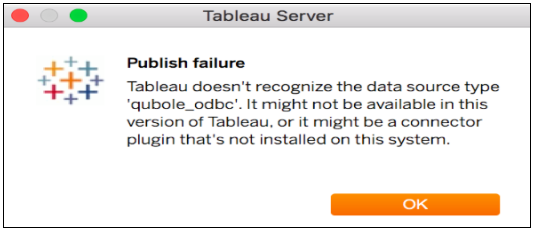
For Tableau Server: Once you publish a report from Tableau Desktop, prompt appears with an error: “Tableau doesn’t recognize the data source type qubole_odbc”, as shown below:
D. Connecting to Qubole Data Service (QDS):
Follow the instructions below to connect to QDS:
Open the Tableau and navigate to the menu.
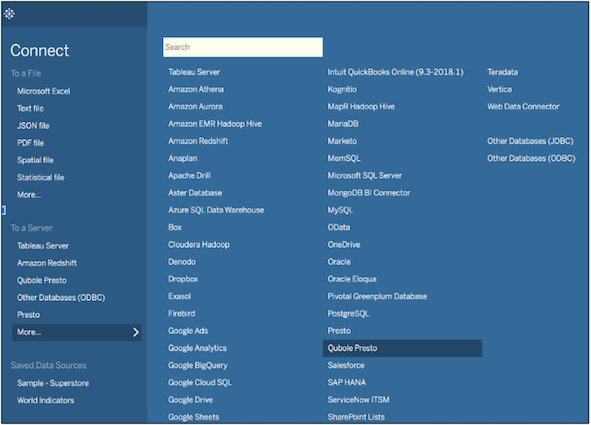
Click Qubole Presto to add required parameters from QDS such as End Point, API Token, Catalog, and Cluster Label.
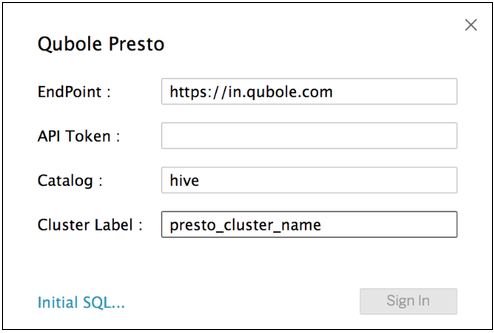
Click Sign In to fire a query on the Qubole portal.
You have successfully connected to Qubole Data Service (QDS) via Qubole Presto Connector.
Note
- Remove all the
.tdcfiles (if present) fromDocuments/My\ Tableau\ Repository/Datasources. - Open Other Sessions of Tableau from a primary instance that has the same connector. This ensures that all new sessions make use of Qubole Presto Connector.