Configuring Tableau Using Other Databases (ODBC) - Deprecated
QDS provides ODBC driver for Windows, Mac OS, and Linux that you have to configure and use with Tableau. Download and install the Qubole ODBC driver for Windows/Mac/Linux as described in Qubole JDBC and ODBC Drivers. You can also optionally install a driver manager like iODBC.
A. Configure Tableau with Qubole ODBC driver (using TDC files)
Tableau offers a feature to customize and influence the type of queries that are sent to the underneath data source. Tableau
permits two types of customizations: Tableau-specific capabilities, and ODBC API calls to SQLGetInfo. These customizations
are made of name/value pairs where the names follow a convention of CAP_ for Tableau capabilities and SQL_ for the
SQLGetInfo API calls.
Qubole has customized and fine-tuned the connection with tableau using the .tdc files. Follow the instructions
below to configure Tableau with Qubole ODBC driver using the .tdc files:
Download and install Qubole ODBC driver for your respective operative system as described in Qubole ODBC Drivers.
Download the
.tdcfiles from the following links:- https://s3.amazonaws.com/paid-qubole/odbc/Hive.tdc
- https://s3.amazonaws.com/paid-qubole/odbc/Presto.tdc
In the
<connection-customization>tag, the version attribute should be set to to the version of Tableau being used. Example: For Tableau 9.0, the tag is:<connection-customization class='genericodbc' enabled='true' version='9.0'>.Update the version of Tableau Desktop/Server in the
.tdcfiles as shown below:<?xml version='1.0' encoding='utf-8' ?> <connection-customization class='genericodbc' enabled='true' version=[Tableau Version]> <vendor name='Presto' /> <driver name='QuboleODBC' />
While using Hive connection, use the
Hive.tdcfile, and use thePresto.tdcfile when you are using Presto connection.Tableau Desktop: Move the
.tdcfiles to the following location:For Windows:
C:\Users\<username>\Documents\My Tableau Repository\Datasources\For Linux/MAC:
/Users/sandeepb/Documents/My Tableau Repository/DatasourcesTableau Server: Move the
.tdcfiles as per the platform and version mentioned below:For Windows:
Tableau Server versions prior to 2018.2 -
Program Files\Tableau\Tableau Server\<version>\binTableau Server version 2018.2 or above -
Program Files\Tableau\Tableau Server\packages\bin.<build number>All versions of Tableau Server -
ProgramData\Tableau\Tableau Server\data\tabsvc\vizqlserver\DatasourcesTo save the file in the above mentioned location, you must have the Windows Administrator access on the server computer.
For Linux/MAC:
/var/opt/tableau/tableau_server/data/tabsvc/vizqlserver/Datasources/For more information, see Using a .tdc File with Tableau Server.
Restart Tableau Desktop/Server to apply the changes.
Note
It is recommended to have single .tdc file at a time in the Data Sources location as you cannot have multiple
.tdc files for same driver. There is no way to ask the Tableau Server to choose the .tdc file as each .tdc
customization file is there according to the database driver.
B. Connect to Qubole using Other Databases (ODBC)
Follow the instructions below to connect to QDS using Other Databases (ODBC):
Install and configure the ODBC driver for MAC/Windows/Linux as mentioned in Qubole ODBC Drivers.
Open Tableau. Under To a Server section, click More..
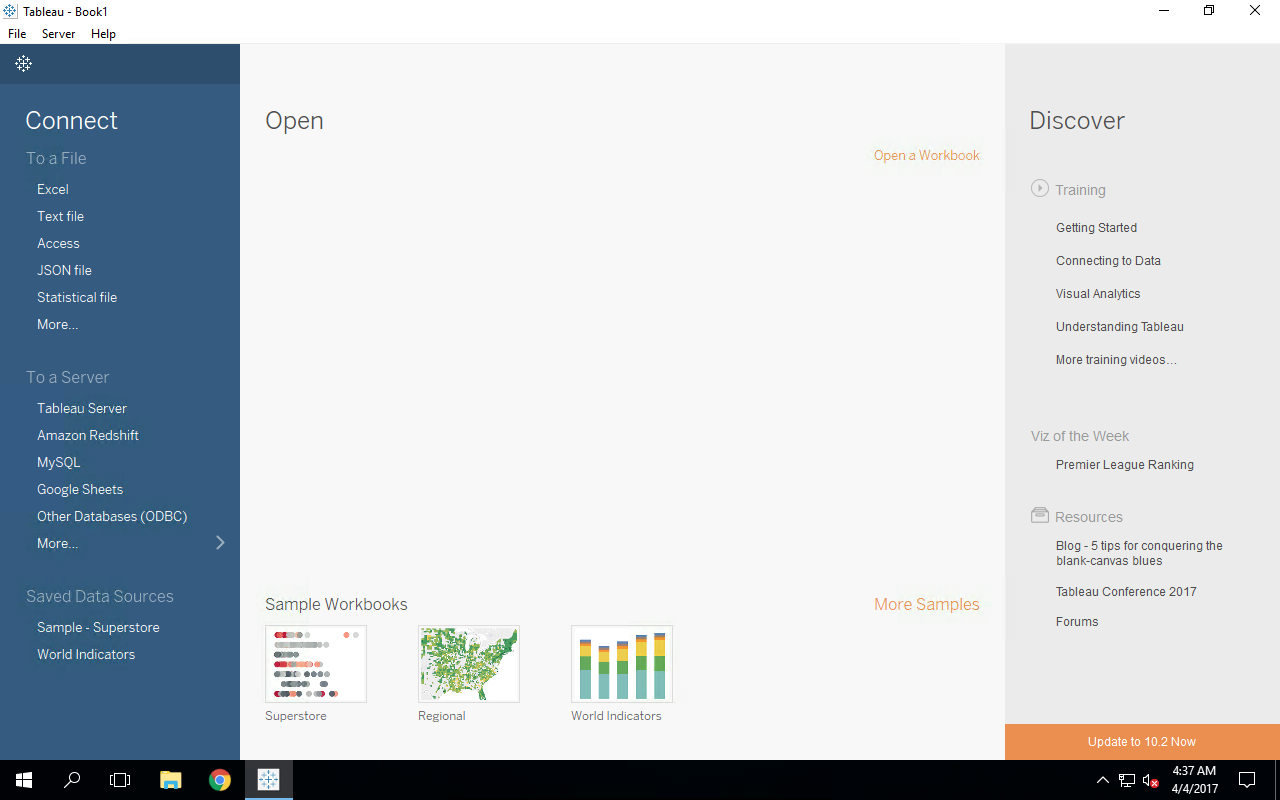
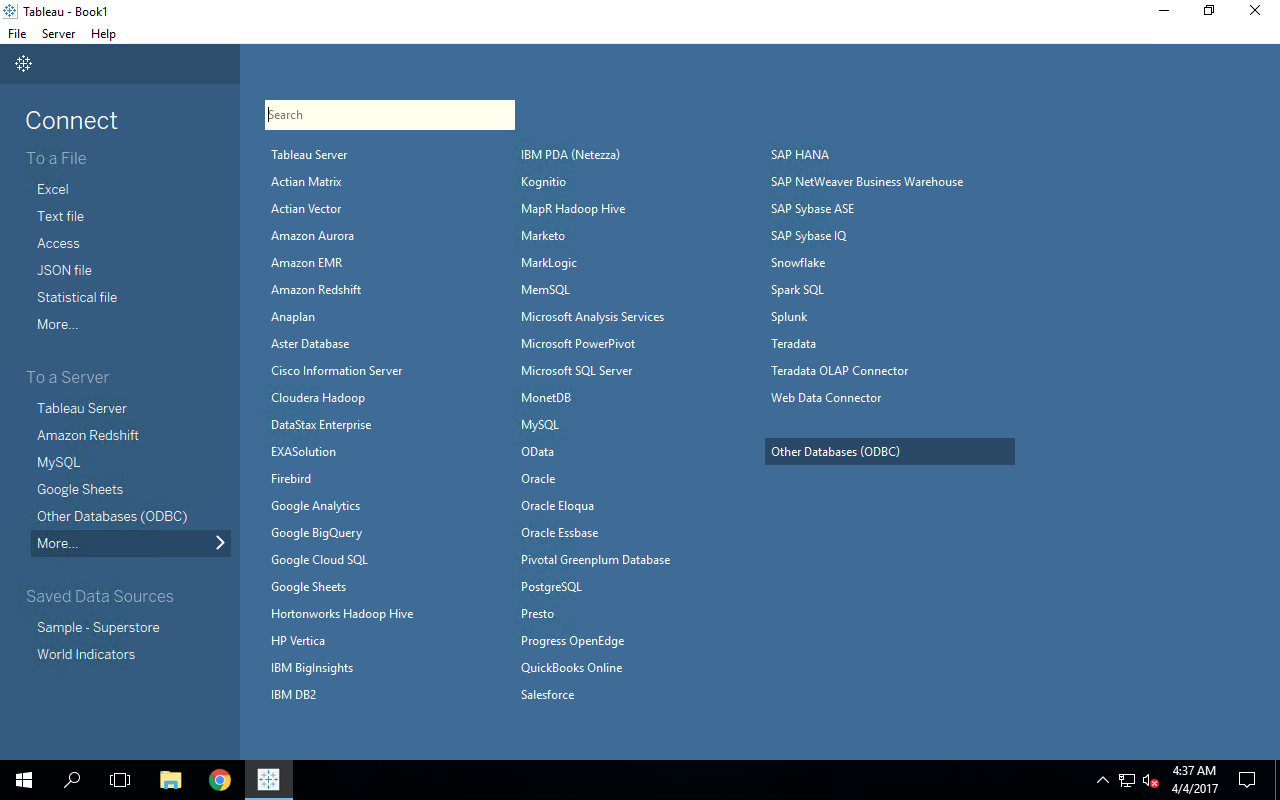
Tableau displays a list of options. Click Other Databases (ODBC).
The Other Databases (ODBC) dialog is displayed. Select DSN radio button and select Qubole ODBC Driver DSN 64 from the drop-down list of DSNs. Click Connect. The ODBC driver tries to connect to QDS and you can see a query running on the Analyze page on the QDS environment. Henceforth, almost all steps performed on Tableau will run the query on QDS. If the cluster is not already running, the drivers will start it.
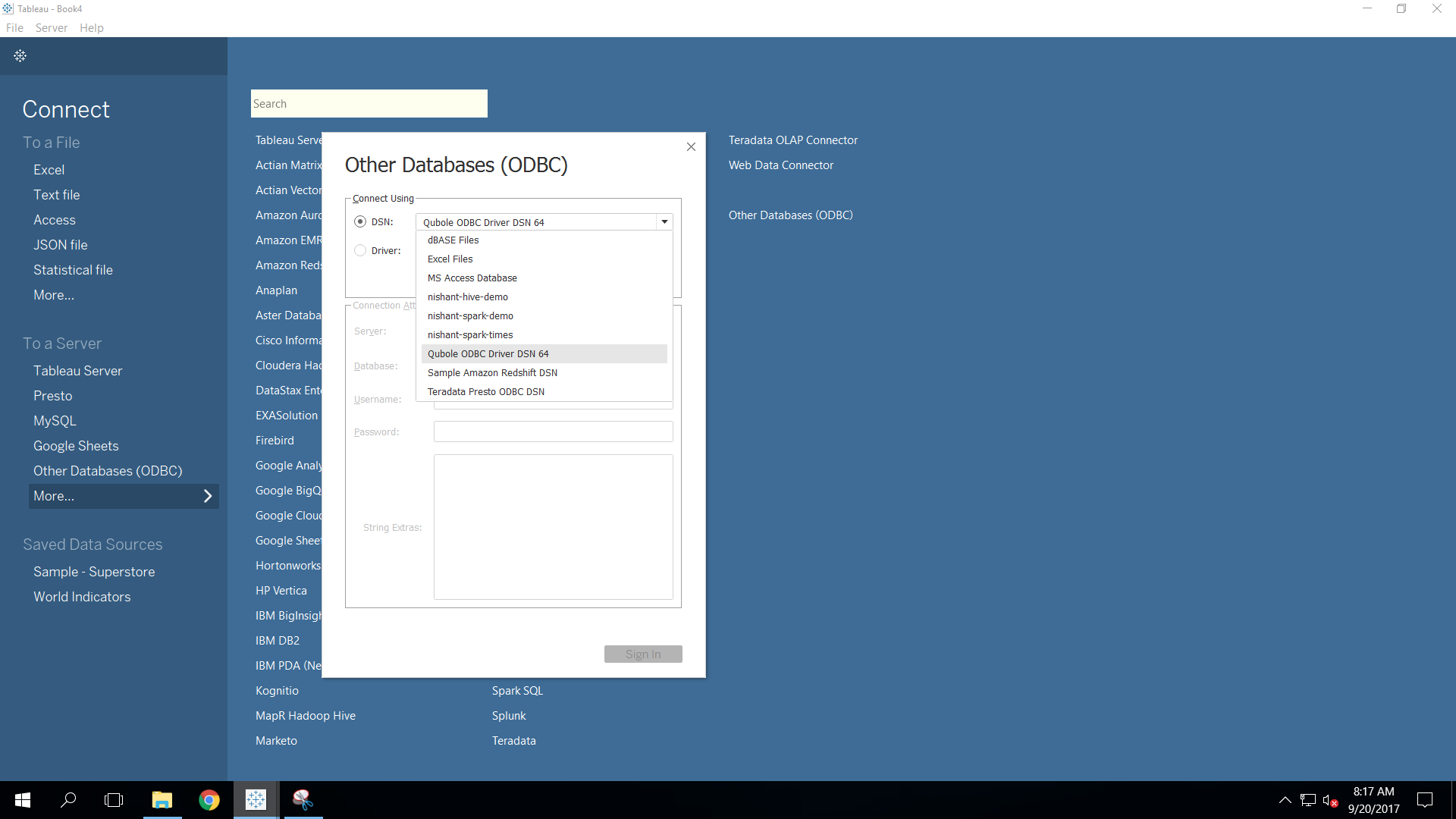
Click Sign In.
You have successfully connected to the Qubole using Other Databases (ODBC).