Publishing a Workbook from Desktop and Scheduling Extract Refresh on Tableau Server
Follow the instructions below to publish a workbook from Desktop and schedule an extract refresh on Tableau server:
Double-click New Custom SQL on the Tableau Desktop.
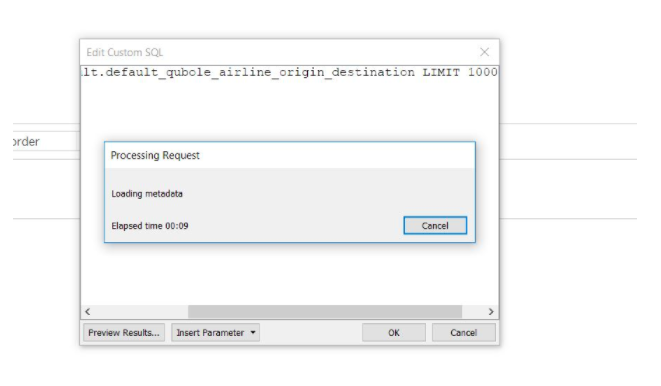
Enter a query and click OK.
The query gets submitted to Qubole and can be seen on the QDS UI’s Analyze page.
On the right top corner, select Extract under Connection.
On the bottom-left corner, click go to worksheet.
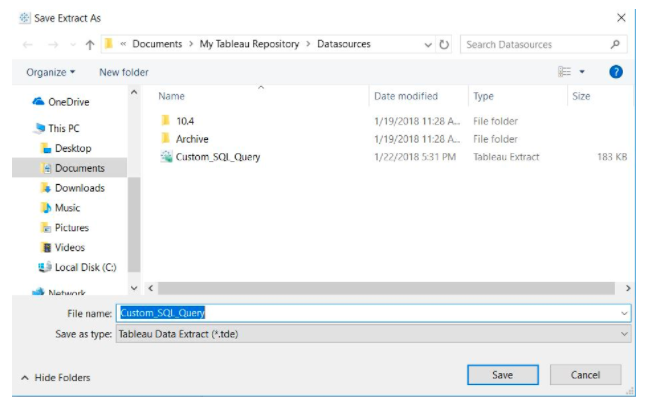
A Save Extract as dialog appears asking to save the datasource. Retain the file name or change it if required and click Save. The dialog is illustrated below.
Customise the worksheet.
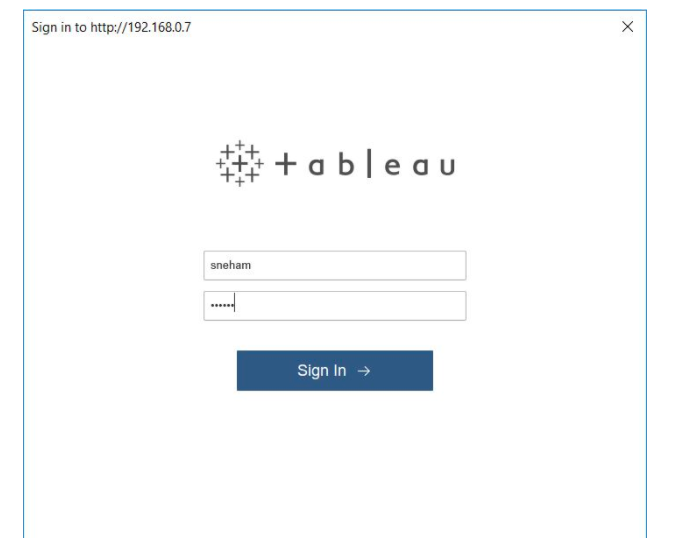
Go to Tableau Server. Enter the username and password and click Sign In.
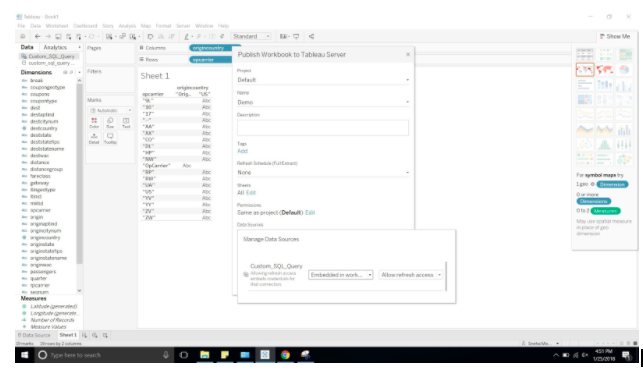
Click Server and click Publish Workbook.
Provide a name and description for the workbook.
Select edit that is next to Datasource.
Select Embedded in workbook and Allow refresh access.
Click Publish.
A server page is launched.
Select Schedule Refresh.
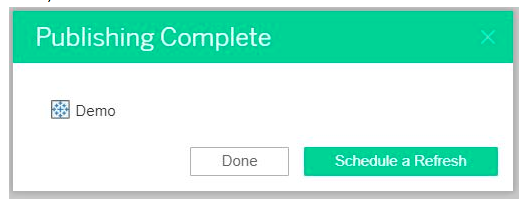
Select a time to auto-run refresh by server on the extract and click Schedule a Refreshes.
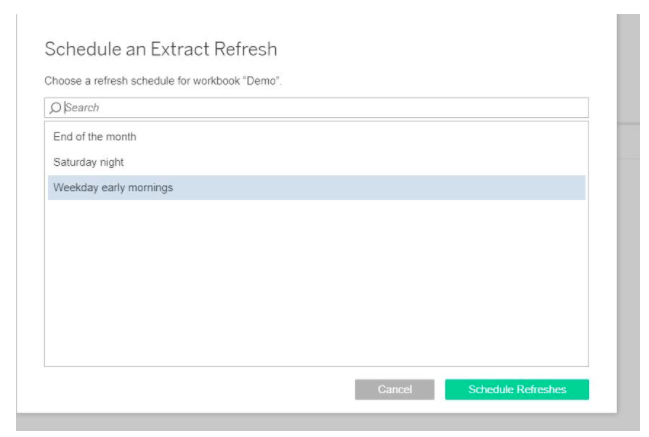
To test run, you must manually start a refresh.
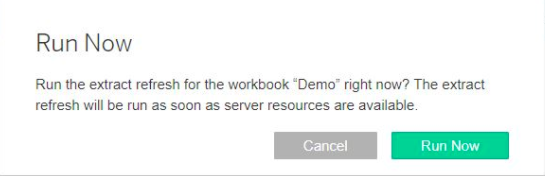
Go to the Refresh Schedule tab and click the refresh….
Click Run Now.
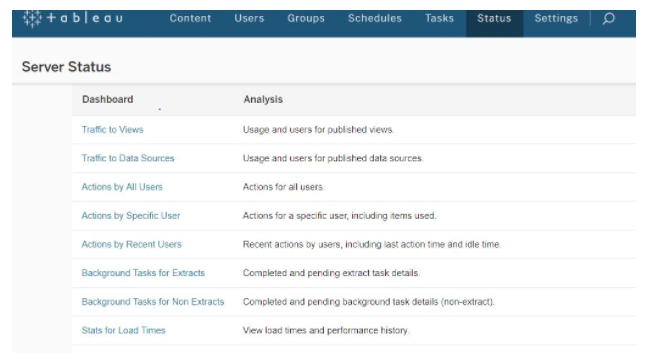
Go to the Status tab.
Select Background Tasks for Extracts.
Select the Process which is currently running.
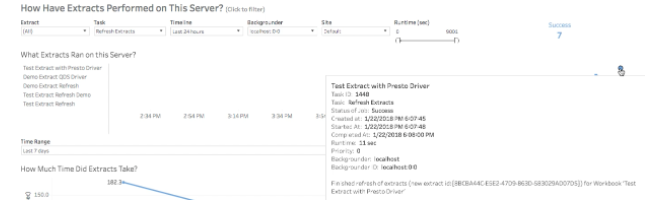
It launches a page with timeline for the extract refresh run. Also on completion, the status is shown as success. Here is a snippet of a passing extract refresh.
Learn more details on the Extracting Refresh page.