Configuring the ODBC Driver
You can change the connection settings from the iODBC Administrator64 that is part of the iODBC Driver Manager or by
editing the odbc.ini file. These are the two ways that you can configure the ODBC driver:
Note
In JDBC and ODBC driver configurations, https://api.qubole.com is the default endpoint.
Prerequisites
These are the prerequisites:
- Ensure that you have the access to the object/resource that you refer to in the driver configuration. If you see an access denied error, check with the Qubole account administrator. For more information, see Resources, Actions, and What they Mean.
Configuring the Driver through the iODBC Manager
Ensure that the iODBC Driver Manager is installed on the Mac as described in Installing the ODBC Driver on Mac.
Perform these steps to configure the ODBC driver:
Open iODBC Administrator64 with Administrator Privileges. (
sudo /Applications/iODBC/iODBC\ Administrator64.app/Contents/MacOS/iODBC\ Administrator64)Go to System DSN and select Qubole ODBC Driver DSN and the dialog is illustrated here.
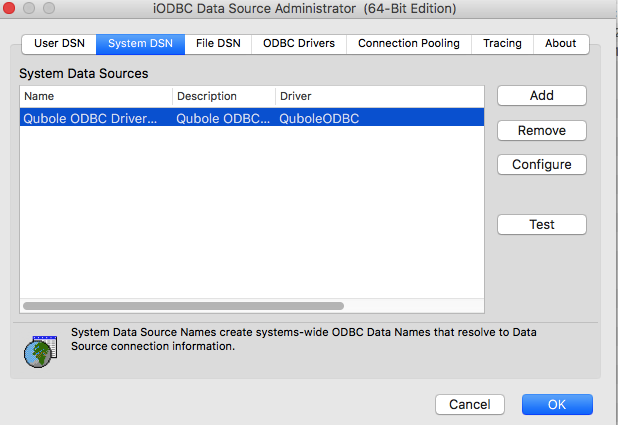
Click Configure.
Enter the valid API Token. Managing Your Accounts provides more information on the API tokens.
Change the DSI to the required one - (Hive, Presto or Spark).
If the DSI is Spark, enter APPID. The Configure dialog box is as illustrated here.
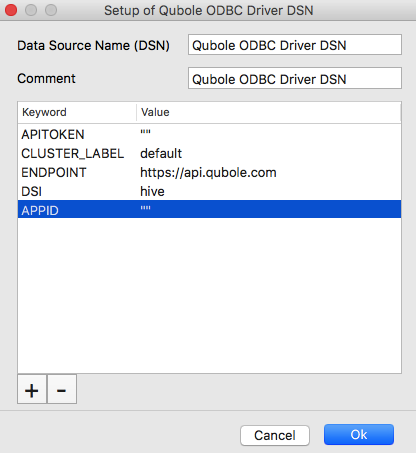
Click OK.
Configuring the Driver through the ODBC.ini File
The Qubole ODBC driver comes with a DSN created that you can see in the the odbc.ini file. After you install the driver,
you can trace the odbc.ini file in the Library/ODBC/ location. You can add another DSN or modify the DSN details.
For the Qubole ODBC driver, these are the defaults in the odbc.ini file.
[ODBC]
# Specify any global ODBC configuration here such as ODBC tracing.

[ODBC Data Sources]
Qubole ODBC Driver DSN=QuboleODBC

[Qubole ODBC Driver DSN]
# This key is not necessary and is only to give a description of the data source.
Description=Qubole ODBC Driver DSN

# Driver: The location where the ODBC driver is installed to.
Driver=/Library/qubole/odbc/lib/universal/libquboleodbc.dylib
# APITOKEN: The API Token for the account to be used, as provided by Qubole.
APITOKEN=""
# CLUSTER_LABEL: The label of the cluster on which queries are to be run
CLUSTER_LABEL=default
# ENDPOINT: The endpoint for the account to be used, as provided by Qubole.
ENDPOINT=https://api.qubole.com
#DSI: The data source name : Hive, Spark, Presto, or SQLCommand
DSI=hive
APPID=""
In the odbc.ini file, you can edit any entry’s value. You can change these parameters as per the requirements:
APITOKEN: Enter The API token of the QDS account. Managing Your Accounts provides more information on the API tokens.CLUSTER_LABEL: The cluster label isdefault, which implies that it is default cluster of the account. You can change it by adding the cluster’s label that you want to use.ENDPOINT: It is the QDS environment. By default, it is https://api.qubole.com. To change it to a different QDS environment on which you have the QDS account, add that QDS environment as the endpoint. For more information on the endpoints, see Supported Qubole Endpoints on Different Cloud Providers.DSI: It is the Data Source Name. By default, it isHive. You can change it toPrestoorSparkas required.APPID: When you set the Data Source Name asSpark, enter the APP ID. It is not applicable to the Presto or Hive data source.