Introduction to Notebooks
Notebooks are becoming increasingly popular among data scientists, who often use them for quick exploration tasks. Once set up, a notebook provides a convenient way to save, share, and re-run a set of queries on a data source– for example to track changes in the underlying data over time, or to provide different views using different parameters.
Qubole notebooks are based on the Apache Zeppelin implementation and provide the following advantages:
Support Spark
Support Presto and Hive on Cloud platforms that support Hive/Presto; see QDS Components: Supported Versions and Cloud Platforms.
Warning
Hive and Presto notebooks are in the beta phase. As there may be potential security concerns to use it in production, you can experiment a Hive or a Presto notebook and cannot use it for a production usage.
Are implemented on Hadoop clusters, providing greater compute power than a single machine, and facilitating collaboration among QDS users
Support a range of interpreters
Provide visualization support, including support for interactive visualizations
Can be created and modified easily as needed by means of the QDS UI
Accessing Notebooks
In the QDS user interface (UI), navigate to the Notebook page. The following figure shows an example of the Notebook homepage.
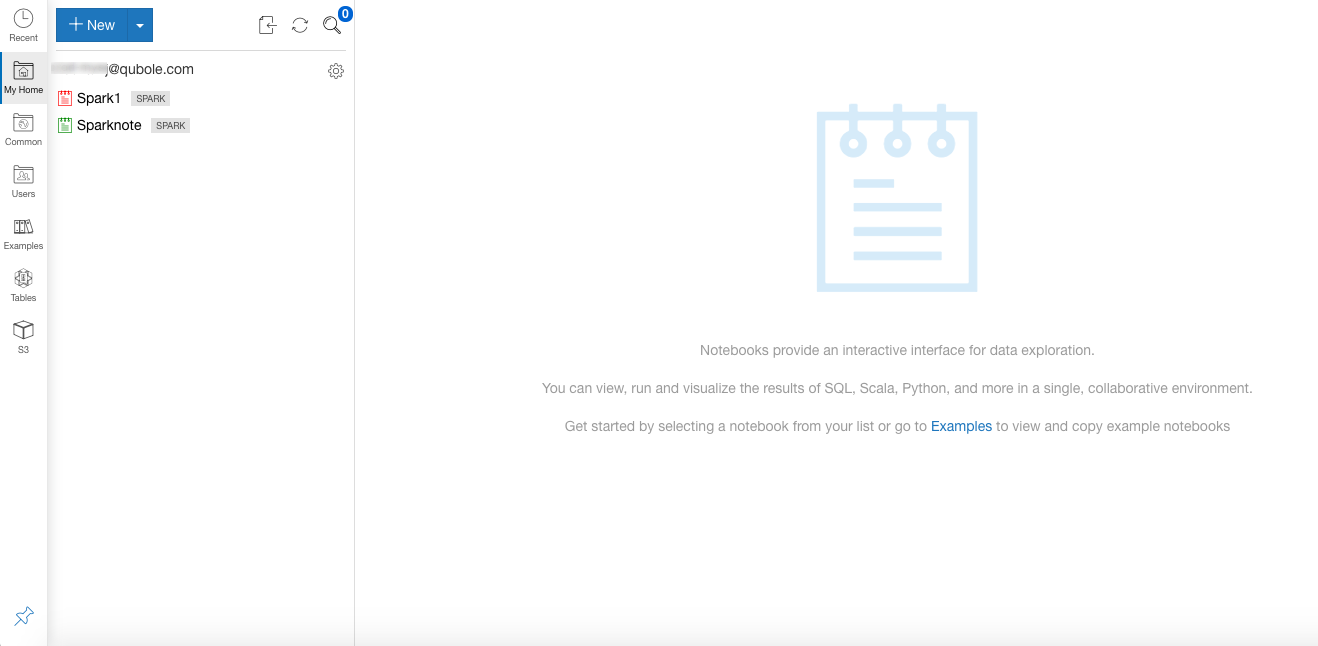
The left panel displays the list of notebooks (for an existing user). You can hide and unhide the left panel to see or hide the list of notebooks.
Note
A pin is available at the bottom-left of the Notebooks UI. You can use it to hide/unhide the left side bar to toggle the notebooks’ list.
The notebooks listed in Notebooks are the ones that are in the current user of the Qubole account. A notebook that is marked green indicates that its assigned cluster is running. A notebook that is marked red indicates that its assigned cluster is down. A notebook that is marked grey indicates that it is not assigned to any cluster.
Note
Clicking the Qubole logo on the QDS UI displays the Qubole homepage.
Using Folders in Notebooks explain about how to use folders in the notebook.
The following topics explain how to manage and use notebooks: