Managing Notebook Versions using GitHub
Qubole supports GitHub integration with notebooks. GitHub integration helps in using a central repository to serve as the single point-of-entry for all changes to a project. It provides the following advantages:
- Ability to track changes
- Provides a central repository for code changes
- Effective way to collaborate
Generating a GitHub Token in the GitHub Profile
As a prerequisite, you must get a GitHub token. Perform the following steps to get the GitHub token:
- On the GitHub profile, pull down the drop-down list against the profile picture and click Settings.
- Under Settings, click Personal access tokens.
- Under Personal access tokens, click Generate new token.
- In the New personal access token page, select repo that provides Full control of private repositories.
- Click Generate Token. A new personal access token is generated.
- The new token is displayed in the Personal access tokens page. Copy it to configure it in the Qubole account.
You can configure a GitHub token in a notebook by using either of the following methods:
- Using the My Accounts tab in the Control Panel for all notebooks in a Qubole account. See Managing Your Accounts for more information.
- You can set the GitHub profile in a specific notebook. Once you set the token, it applies to all notebooks in the Qubole account
QDS encrypts GitHub tokens.
Configuring and Linking a GitHub Profile in Notebooks
To configure and link a GitHub profile from notebooks, perform the following steps:
Note
If you have configured GitHub token in the My Accounts tab of Control Panel, then linking notebook is the only step that you must do. Go to step 3 if the GitHub token is already configured.
Navigate to Notebooks and click a notebook.
Click Version that is on the top-right of the notebook. The Version button expands as shown in the following figure.
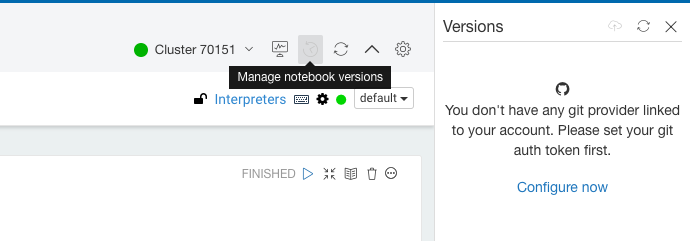
Click Configure now and a dialog is displayed to add the GitHub token of the profile. Add the token but ensure that the repository has read and write permissions. Click Save after adding the token.
The GitHub profile token that you configure within a notebook is a per account or per user setting.
After configuring the GitHub token, click the Version and you can see a message to link it to GitHub as shown in the following figure.
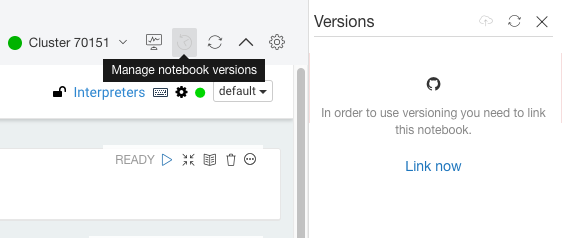
Click the settings icon of that particular notebook in the left panel to see the Link Now option. (See Linking a Notebook for more information.)
In the Link Notebook to GitHub dialog:
Add the GitHub repository URL in the Repository Web URL text field. Ensure that the GitHub profile token has read permissions for the repository to checkout a commit and write permissions for the repository to push a commit.
To get the URL, go to the GitHub profile and click Repositories. From the list of repositories, click the repository that you want to link. The URL is displayed within that repository. Alternatively, go to the GitHub profile and copy the URL from the browser’s address-bar.
Qubole also supports adding
HTTPS *.gitlink as the GitHub repository URL. To get the HTTPS URL, go to the GitHub profile and click Repositories. From the list of repositories, click the repository that you want to link. Within that GitHub repository, click Clone or Download. A drop-down text box is displayed. Copy the HTTPS URL or click Use HTTP (if it exists) to copy the HTTPS URL.Once you add the URL, select a branch from the Branch drop-down list.
Add an object path file in the Object Path text field.
A sample is as shown in the following figure.
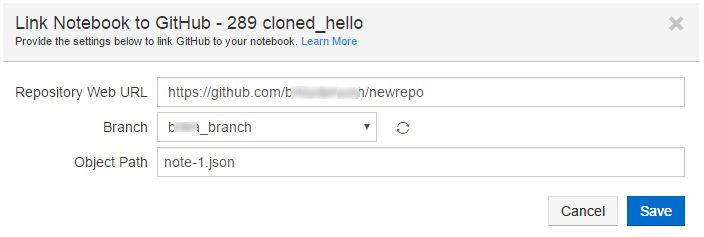
Click Save after adding the details to link the notebook with the GitHub repository.
Pushing Commits to the Linked GitHub Profile
After you link notebooks with a GitHub profile, you can start using the notebook to push commits to the GitHub directly from a notebook associated with a running cluster. Ensure that the GitHub profile token has write permissions for the repository to push commits.
Note
Ensure that the associated cluster is running to checkout from or push commits to the GitHub profile.
Click Version (available in top-right corner) in a notebook. It expands and provides the version details. Click the push icon to commit. A dialog opens to push commits. The Push button gets disabled if the associated cluster is not running. The following figure shows the version details and the Push to GitHub dialog.
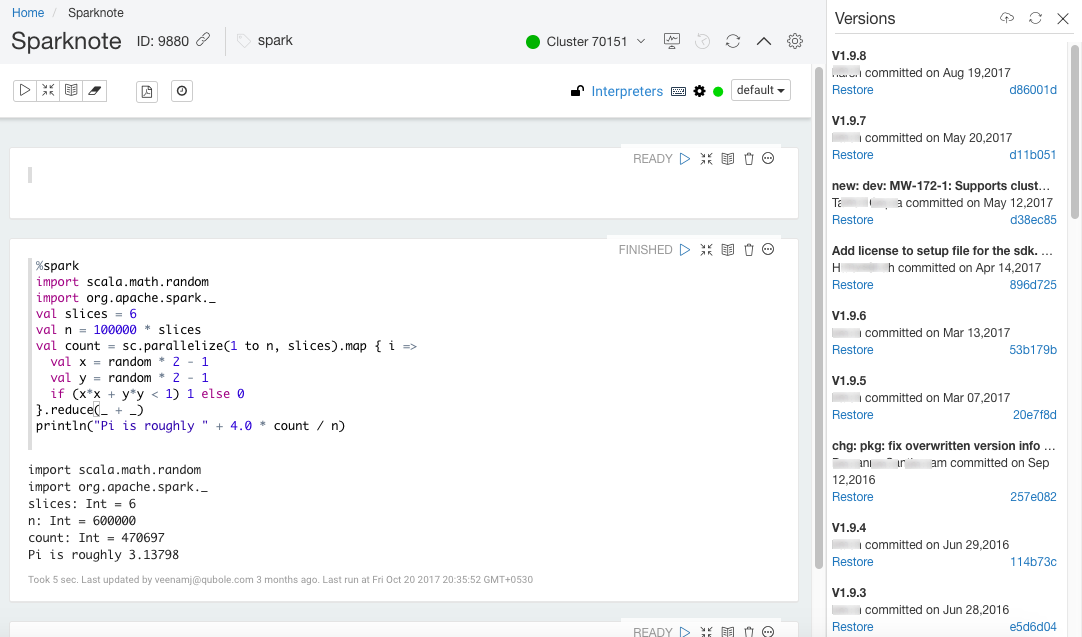
Add a commit message and select force commit if it is required. You can use the option force commit to force push over the old commit (irrespective of any conflict). Click Save to push the commit to the GitHub profile.
Qubole does not store commits/revisions of notebooks at its end but fetches from users’ GitHub account as and when it is required.
Restoring a Commit from GitHub
Click Version (available in top-right corner) in a notebook. It expands and provides the version details. Select a version from the list and click Restore to checkout that version. After clicking Restore, a dialog is displayed asking you to confirm if the commit must be restored. Click OK to checkout that version. Click Cancel if you do not want to checkout.
Qubole does not store commits/revisions of notebooks at its end but fetches from users’ GitHub account as and when it is required.
Resolving Conflicts While Using GitHub
There may be conflicts while pushing/checking out commits in the GitHub versions.
Note
You can use the option force commit to force push over the old commit (irrespective of any conflict).
Perform the following steps to resolve conflicts in commits:
- Clone the notebook.
- Link the cloned notebook to the same GitHub repo branch and path as the original notebook.
- Checkout the latest version of the cloned notebook.
- Manually port changes from the original notebook to the cloned notebook.
- You can commit the cloned notebook after porting changes.