Using the Cluster User Interface
Note
Qubole does not currently support all cluster types on all Cloud platforms; see QDS Components: Supported Versions and Cloud Platforms.
Navigate to the Clusters page in the QDS UI to see the list of active and inactive clusters.
Note
Only an administrator can see all the UI options described in this page. A system user can see most of the UI options except a few that are only accessible to the administrator. The options are managed by the roles and groups configuration.
For more information on cluster configuration through the QDS UI, see Managing Clusters.
The icon against each cluster ID indicates what type of cluster it is. Here are how the cluster types are indicated within the round icon:
An Hadoop 1 cluster contains an H1 within the round icon.
Note
Qubole has deprecated Hadoop 1 as-a-service. For more information, see Hadoop 1 is Deprecated.
An Hadoop 2 (Hive) cluster contains an H2 within the round icon. You can enable Hive Server 2 in an Hadoop 2 cluster as described in Configuring a HiveServer2 Cluster (AWS). An Hadoop 2 cluster is now known as Hadoop 2 (Hive) cluster.
A Presto cluster contains a P within the round icon.
A Spark cluster contains an S within the round icon.
An Airflow cluster contains an A within the round icon.
Active and inactive clusters are listed as two separate categories on the Clusters page. The active clusters have a green icon against them and inactive clusters have a pale-red icon against them.
There is another category, Transitioning Clusters that shows the clusters that were just started but still in pending state and not fully in UP state. It also lists the clusters that are just stopped, which would be in the process of getting terminated.
Against each cluster, there are four buttons:
- Resources: It contains the list of resources such as cluster start logs, Job Tracker URL, Spark Job Server (for a Spark cluster), Presto UI (for a Presto cluster), and so on for a running cluster.
- Start: Click this button to start the cluster. For a running cluster, this button is replaced by a Stop button.
- Edit: Click this button to edit a cluster’s configuration.
- An elipse: This button has a sub-list of options such as editing a node bootstrap of the cluster, clone, delete, and setting it as a default cluster (in case of a non-default cluster of the account).
Click an active cluster to see the resources and public and private IP addresses of its master and worker nodes.
The Node Bootstrap Logs are also available in the cluster UI as part of Nodes table for a running cluster. In the cluster UI, below the active/running cluster, the number of nodes on the cluster is displayed against Nodes. Click the number to see the Nodes table.
Searching and Filtering Clusters
You can use the search box and type either cluster ID or label to find the closest matching clusters that you want (if the list of clusters is too long).
Click the filter icon available on the clusters UI page to filter the cluster by its status or type. The search box and expanded filter options for clusters are as shown in the following figure.
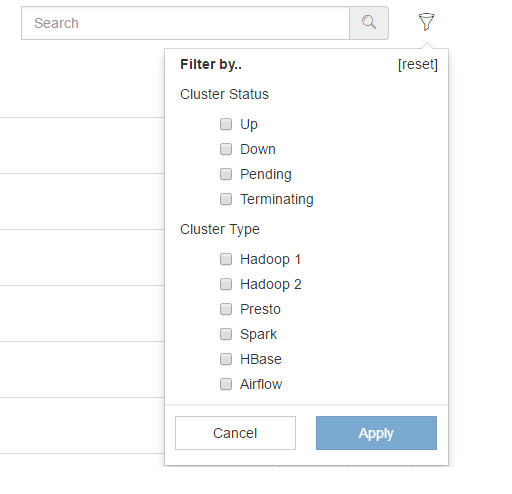
In the filter, select the cluster type or status as required and click Apply.
Understanding the UI of an Active Cluster
Click an active cluster and it provides you the cluster-related information such as:
- Cluster ID and the cluster type
- The cluster up time
- The cluster start time
- Number of nodes
- Master DNS
- All its available Resources
- Nodes’s details such as instance type, role, public and private DNS, Spot Instance, and the uptime of the node.
When you do a mouse hover on the master DNS of the cluster, you can see a copy button. Click it to copy the cluster’s master DNS. You can also click to view the commands that are run on a specific cluster by clicking the label name in the list of active/inactive clusters.
Note
You can reassign a cluster’s label to another cluster by dragging it and dropping it against the cluster to which you want to assign in the main Clusters UI page. Ensure that the clusters are not running as a running cluster may have active queries running on them. Reassign a Cluster Label describes how to reassign a cluster label through the API.
Viewing Deleted Clusters
Click View Deleted Clusters that is available at the bottom of the Clusters UI page, to see the list of deleted clusters.
Launching a Web Terminal for Clusters on QDS-on-AWS
QDS supports launching a cluster master’s web terminal for a cluster using Qubole on AWS. This feature is available for a beta access.
Create a ticket with Qubole Support to get this
feature enabled on the account. You can launch a cluster master’s web terminal on <AWS environment>/butterfly-terminal-<cluster ID>.
Where <AWS environment> can be any of these QDS-on-AWS environments:
Example: https://api.qubole.com/butterfly-terminal-<clusterID>