Power BI setup
- If you already have launched Azure DVSM, it contains Power BI built in and ready to use. To use this built-in version of Power BI, you can jump to Setting up the custom Qubole connector. If you are setting up a new virtual machine for Power BI, download the desired version of Power BI.
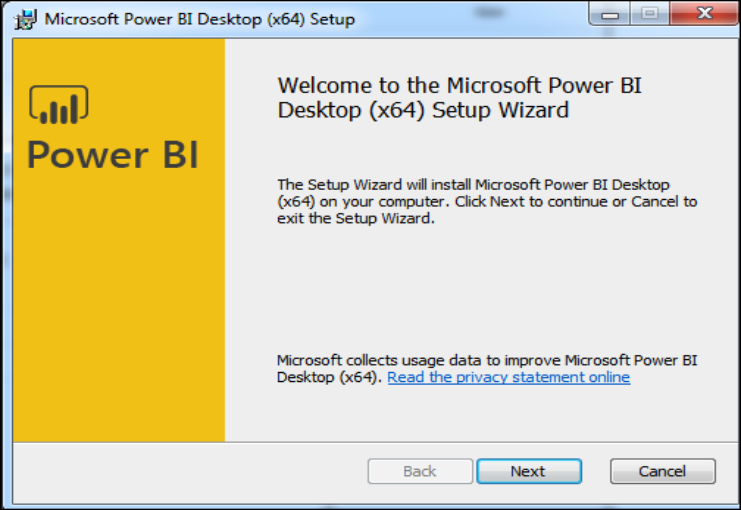
2. Run the .exe file with Administrator privileges. When you run the installation file, the following screen is displayed:
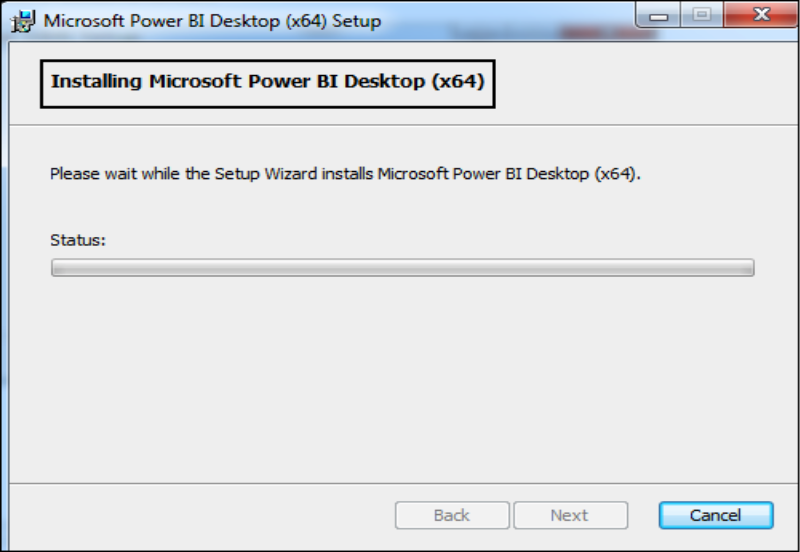
- Accept the license agreement and follow the instructions on the screen.
- When Power BI is installed, launch the Power BI application. This screen is used to select from options for getting data, enriching the existing data models, creating reports, and publishing and sharing reports.

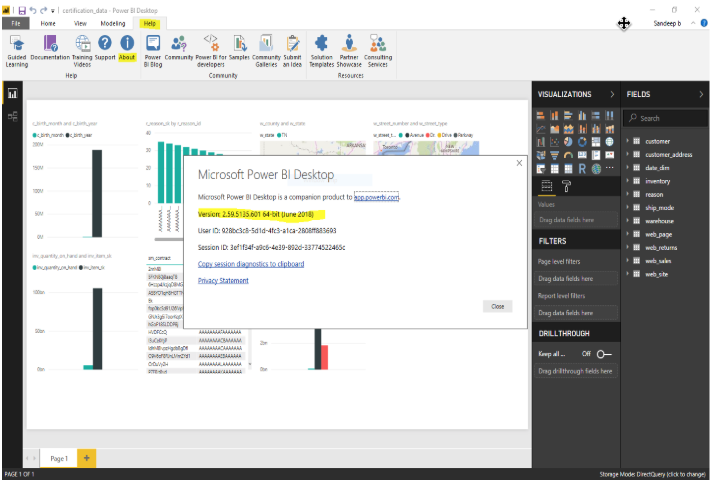
- Verify the version in use by clicking the Help tab and clicking on About. The version must have a release date of June 2018 or later. If the release date is earlier than June 2018, update Power BI to the latest version by clicking Update, or manually download and install the latest version of Power BI Desktop from https://powerbi.microsoft.com/en-us/desktop/.
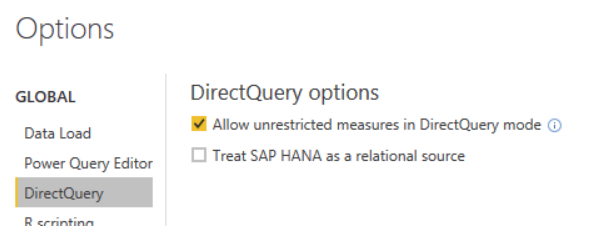
- To ensure that queries sent to the underlying data source have acceptable performance, limitations are imposed on measures by default. Advanced users can choose to bypass these limitations by selecting File > Options and settings > Options and then DirectQuery, then selecting the option Allow unrestricted measures in DirectQuery mode. When that option is selected, any DAX expression that is valid for a measure can be used. Be aware, however, that some expressions that perform very well when the data is imported may result in very slow queries to the backend source when in DirectQuery mode.