Configuration of the DSN for Power BI
The ODBC connector in Power BI Desktop lets you import data from any third-party ODBC driver simply by specifying a Data Source Name (DSN) or a connection string. The data source has to be configured in the ODBC manager to connect successfully with Qubole services.
Open Control Panel > System and Security > Administrative Tools > ODBC Data Sources (64 bit).
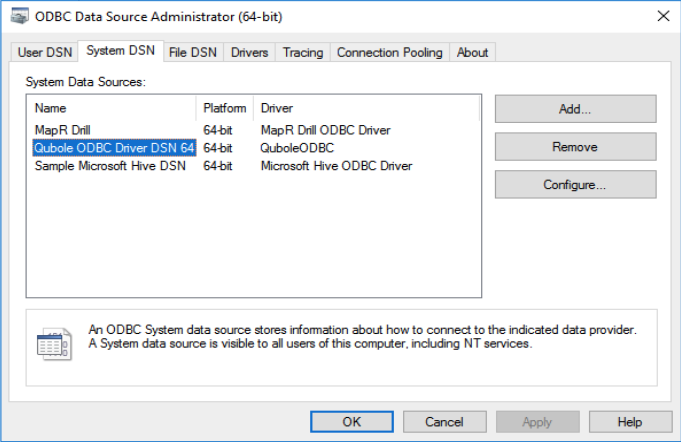
Click the System DSN tab. On successful installation of the Qubole ODBC driver, you will find the entry Qubole ODBC Driver DSN 64.
Navigate to the Control Panel in the QDS UI and click the My Accounts tab on the left pane. Click Show for the account and copy the API token that is displayed.
Click on Configure to update the fields API Token, Cluster Label, End Point, and Data Source Type.
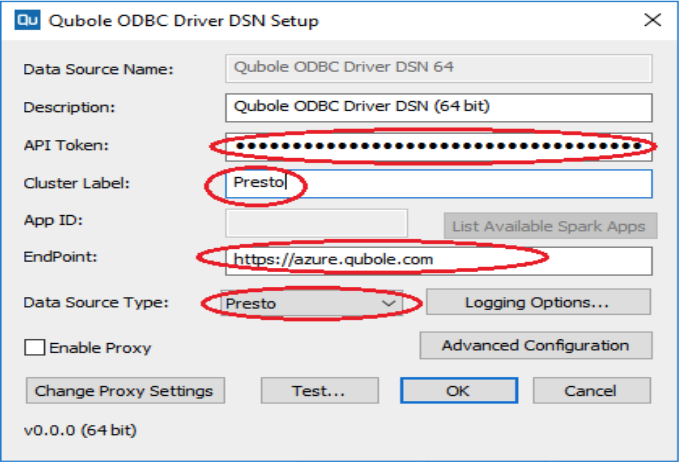
Use the Test button to verify your configuration. If all the parameters are correct, you will get a success message. This means the data source name is successfully configured and ready to use with Power BI.