Download Results and Logs from the Analyze UI
You can download command results from the Qubole Analyze UI using one of these two options:
- Click Download that is next to the Command ID in the History tab as described in Downloading Results from the History Tab.
- Click Download that is on the right-most corner of the Results tab as described in Downloading Results from the Results Tab.
Note
Data Analytics describes composing different types of commands that you can run on the Analyze Query composer.
About the Result File Size Limit
By default, for each QDS account, the result file size limit is 20 MB. If you want to increase this limit, create a ticket with Qubole Support.
Qubole allows downloading results in the these formats:
- Supported formats supported when the result file size is within or equal to 20 MB (or configured file size limit):
- CSV (comma-separated values)
- TSV (Tab-separated values)
- RAW
- Supported formats when the result file size is more than the default 20 MB (or over the threshold file size limit):
- Complete Raw Results. For more information, see Download Complete Raw Result from the Analyze UI.
Downloading Results from the History Tab
For all successful commands, the following options are available when the result file size is within or equal to 20MB:
- Download CSV
- Download TSV
- Download RAW
The Download by sub-commands option allows you to get results for subcommands that finished successfully even if a subcommand failed later in the Workflow command.
Note
The Download by sub-commands option is available only for Workflow commands.
Downloading the results/logs of subcommands in a Workflow command is not enabled by default. Create a ticket with Qubole Support to enable this for an account.
Here is an example that shows the above options.
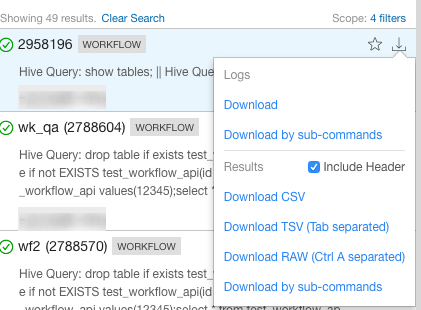
You can click Logs > Download for downloading logs.
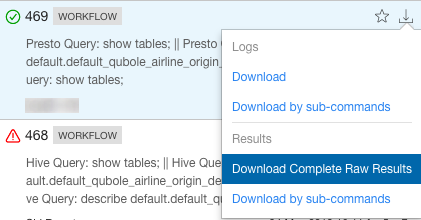
Download Complete Raw Results is only available if the result file size is larger than 20 MB as shown in this example.
Downloading Results from the Results Tab
For all successful commands, the following options are available when the result file size is within 20MB:
- Download CSV
- Download TSV
- Download RAW
The Download by sub-commands option allows you to get results for subcommands that finished successfully even if a subcommand failed later in the Workflow command.
Note
The Download by sub-commands option is available only for Workflow commands.
Downloading the results/logs of subcommands in a Workflow command is not enabled by default. Create a ticket with Qubole Support to enable this for an account.
Here is an example that shows the above options.
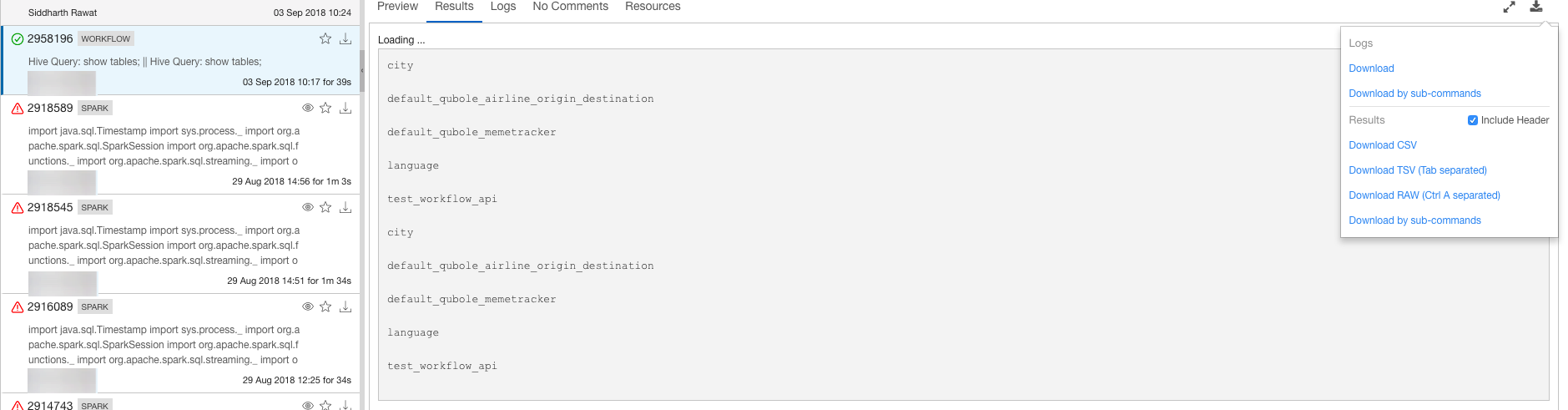
You can click Logs > Download for downloading logs.
Download Complete Raw Results is only available if the result file size is larger than 20 MB and other downloading options are not displayed as shown in this example.

Note
The Include Header option is unavailable with the Download Complete Raw Results option.