Uploading & Downloading a DAG on an Airflow Cluster
Note
This is a Beta feature. Contact Qubole Support to enable this for your account.
You can now upload and download Airflow python DAG files to the account’s default storage location, edit them in place, and sync them with Airflow clusters periodically (in the background) from the Airflow cluster page. The files immediately sync (automatically) with the new cluster. However, a cluster restart is required in the existing clusters. Otherwise, the files sync with the clusters within 5 minutes.
Perform the following steps to upload a DAG:
- Navigate to the Clusters page and click the Airflow cluster that you want to work with.
- Click Dag Explorer from the left pane.
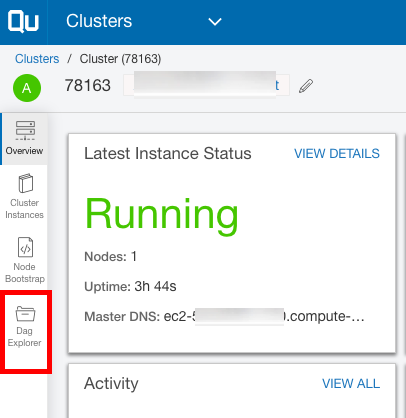
The list of dag_logs, dags, plugins, and process_logs appear.
Note
To upload the files in your S3 bucket using QDS, you need to configure CORS policy. For more information on CORS policy configuration, see Uploading a File to Amazon S3 Buckets.
3. Click the  link against the dags folder and select the file you want to upload. Once the upload is complete,
you can view the file under the dags folder.
link against the dags folder and select the file you want to upload. Once the upload is complete,
you can view the file under the dags folder.
- Verify the File Path and the dag contents in the right pane and click Save.
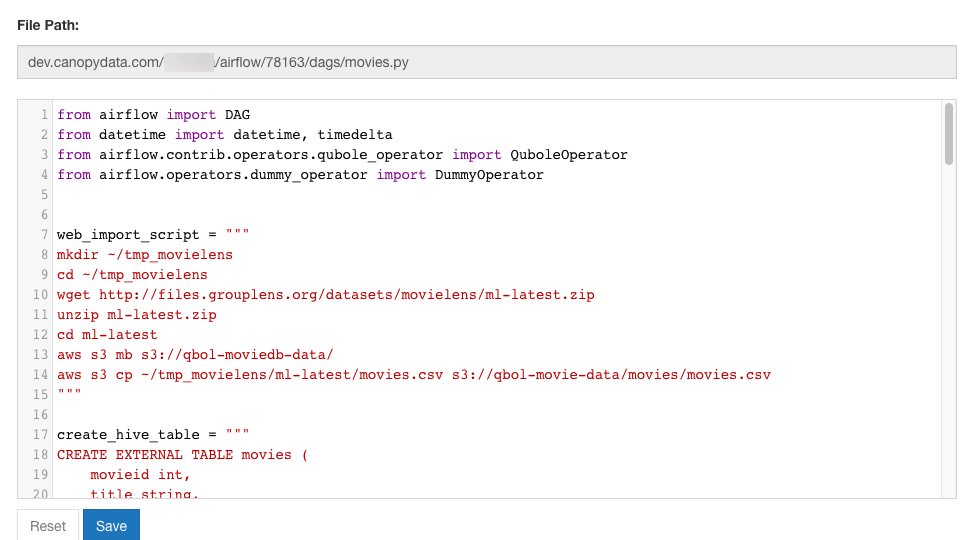
To download any file from the dags folder, click the  link of the corresponding file.