Uploading a File to Amazon S3 Buckets
This document is intended to guide a new user to upload a file into Amazon S3 buckets.
Configure CORS Policy on a S3 Bucket
You must configure the Cross Origin Resource Sharing (CORS) policy on a S3 bucket to which you want to upload a file.
If you are a new user, you can configure the CORS policy on the default storage S3 bucket that is set in Control Panel. Click the Account Settings tab in the Control Panel page.
Copy the default location, mentioned against the Default location (for the created data) that is listed below Storage Settings.
Perform these steps to configure CORS policy on a S3 bucket:
- Login to Amazon S3.
- Navigate to the default bucket, prod.quoble.com.
- Go to Permissions and click Add CORS Configuration. Set the CORS policy as shown in the following figure.
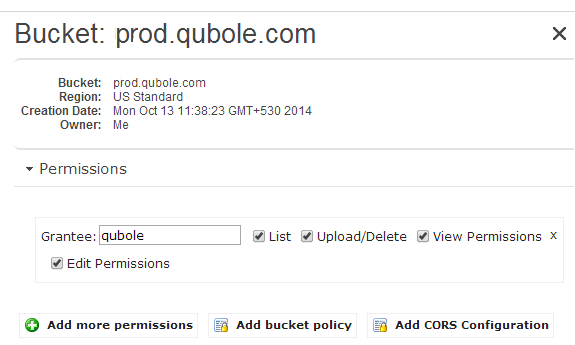
- Repeat steps 2-3 to set the CORS policy on the S3 buckets to which you want to upload files.
A sample CORS configuration XML file is as shown below.
Note
The syntax below uses https://api.qubole.com as the endpoint. Qubole provides other endpoints to access QDS that are described in Supported Qubole Endpoints on Different Cloud Providers.
<xmlns="http://s3.amazonaws.com/doc/2006-03-01/">
<CORSConfiguration>
    <CORSRule>
        <AllowedOrigin>https://api.qubole.com</AllowedOrigin>
        <AllowedMethod>GET</AllowedMethod>
        <AllowedMethod>POST</AllowedMethod>
        <MaxAgeSeconds>3000</MaxAgeSeconds>
        <AllowedHeader>Authorization</AllowedHeader>
    </CORSRule>
</CORSConfiguration>
Upload a File to an S3 Bucket Using Explore on the Qubole UI
Note
You must have object Storage resource permission for the role assigned to you for uploading and downloading data. For more information, see Resources, Actions, and What they Mean.
Perform these steps to upload a file into a S3 bucket using Qubole UI:
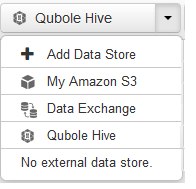
- Navigate to the Explore page, click My Amazon S3 from the drop-down list as shown in the following figure.
- Search the default storage location, prod.quoble.com from the drop-down list as shown in the following figure.
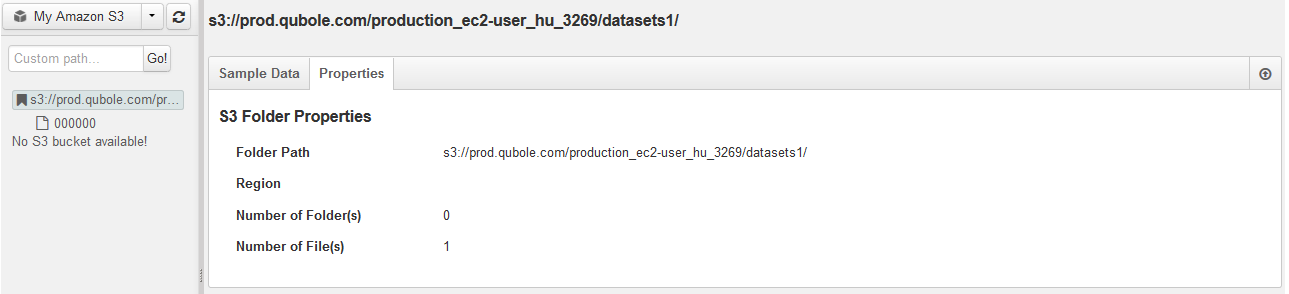
As a prerequisite, the CORS policy has to be set on the prod.quoble.com bucket.
- Click the file upload icon
 and the file upload dialog is displayed as shown in the following figure.
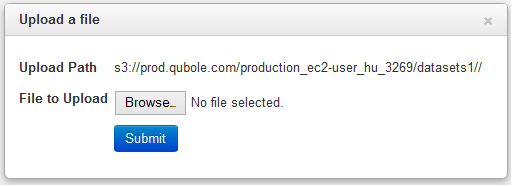
- Click Browse to the location of the file and select the file. Click Submit. A success message is displayed if the upload is successful. An error message is displayed if the upload is unsuccessful.
Go to the corresponding S3 bucket and check to confirm the uploaded file listed in the bucket.
Upload/Download a File from/to an S3 Location through Analyze and Notebooks UI
S3 Tab (AWS) describes how to upload/download file to/from an S3 location through the Analyze UI.
Uploading and Downloading a File to/from an S3 Location describes how to upload/download file to/from an S3 location through the Notebooks UI.