Running a Hive Query
This document is intended to get a new user up and running with QDS, by running a simple Hive query. As a prerequisite, the user must have an active QDS account. To create a new account, refer Managing Your Accounts.
Step I: Explore Tables
Navigate to the Analyze page from the top menu. Click the Tables tab. It shows the list of databases.
Click the database to view the list of all the tables in it.
All accounts have access to two pre-configured tables in the default database: default_qubole_airline_origin_destination and default_qubole_memetracker.
To view the list of columns of a specific table, click on the arrow sign to the left of the table name (see image below).
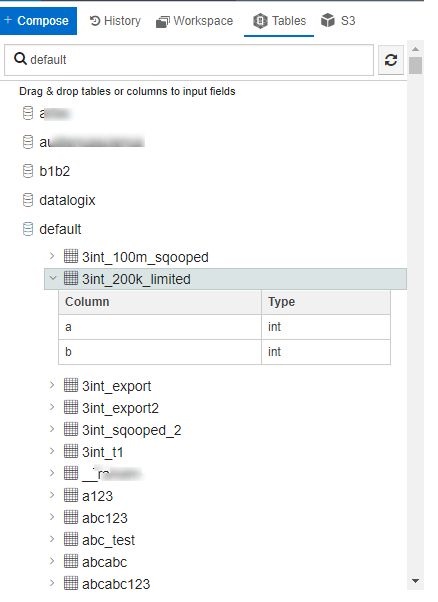
Figure: Pre-Configured Tables
Step II: View Sample Rows
Now, execute a simple query against this table by entering the following text in the query box:
select * from default_qubole_memetracker limit 10
Click Run. Within a few seconds, you should see 10 rows from the table show up in the Results tab.
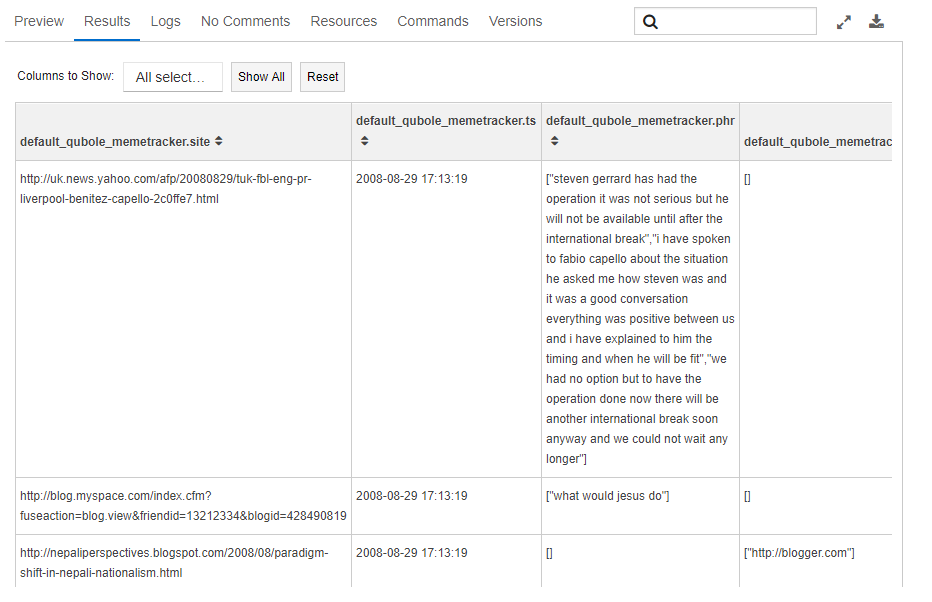
Figure: View Some Rows
Step III: Analyze Data
To get the total number of rows in the table corresponding to August, 2008, use the following query:
select count(*) from default_qubole_memetracker where month="2008-08".
This query is more complex than the previous one and requires additional resources. Behind the scenes, Qubole Data Service provisions a Hadoop cluster, which may take a couple of minutes. The provisioning of the Cluster is indicated with the icon:

Figure: Cluster provisioning
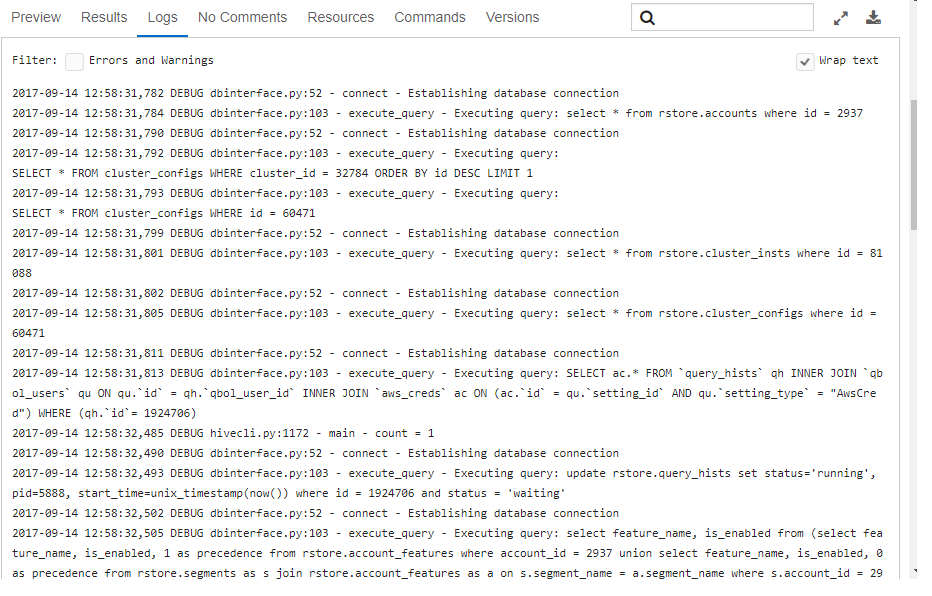
Once the cluster is provisioned, you see the query’s progress in the Log tab.
Finally, you see the logs and results below the query composer.
Logs section looks like the following illustration:
Congratulations! You have executed your first query using the Qubole Data Service.
Further documentation is available at our Documentation home page.
See also: Composing a Hive Query through the UI.