Using Qubole Hive Authorization
Understanding Qubole Hive Authorization describes Hive authorization and different privileges and known issues as well.
Qubole Hive Authorization is not enabled by default. Create a ticket with Qubole Support to get this feature enabled on the Qubole account.
Note
Once Qubole has enabled Hive Authorization in your account:
- QDS sets
hive.security.authorization.enabledtotrue, and adds it to Hive’s Restricted List. This prevents users from bypassing Hive authorization when they run a query. - If you want to change the setting of
hive.security.authorization.enabledat the cluster level, you can do so in the QDS UI: set it in the Override Hive Configuration field in the Hive Settings section under the Advanced Configuration tab of a Hadoop 2 (Hive) cluster, then restart the cluster. - To change the setting at the account level, create a Qubole support ticket.
This section describes how to use the Qubole Hive authorization for securing the Hive table data and controlling users’ access to the table data.
Note
For illustration purpose, the query composer and results tab of the Analyze page in the QDS UI is used.
To access Hive tables, use the <username>@<emaildomain.com> as the login username and default password is empty.
For example, if the username is user1, then you login as user1@xyz.com.
Understanding Privileges for Users and Roles explain the two different roles, public and admin in the Qubole Hive authorization.
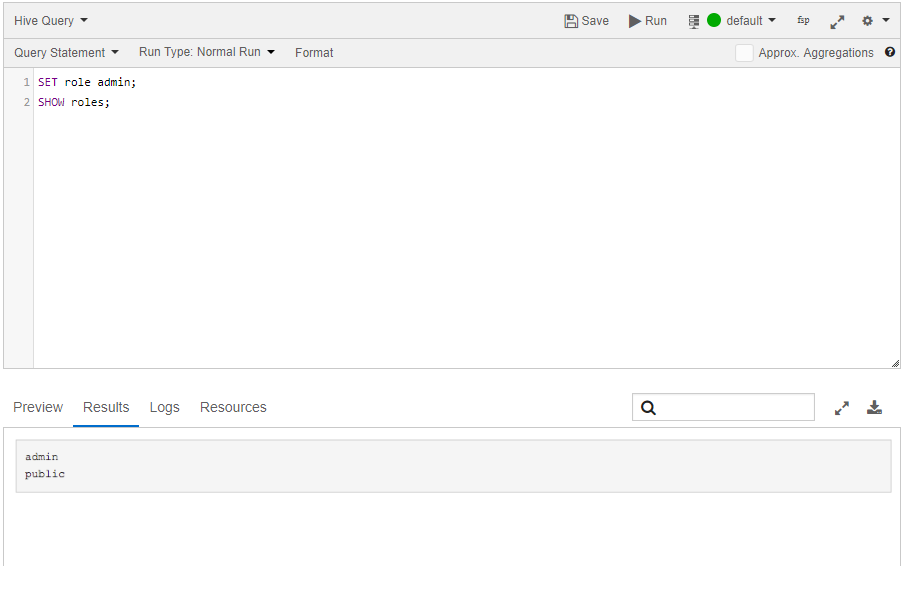
Qubole also has two different users, user and admin as in the open-source Hive. The two roles are as shown in the following figure.
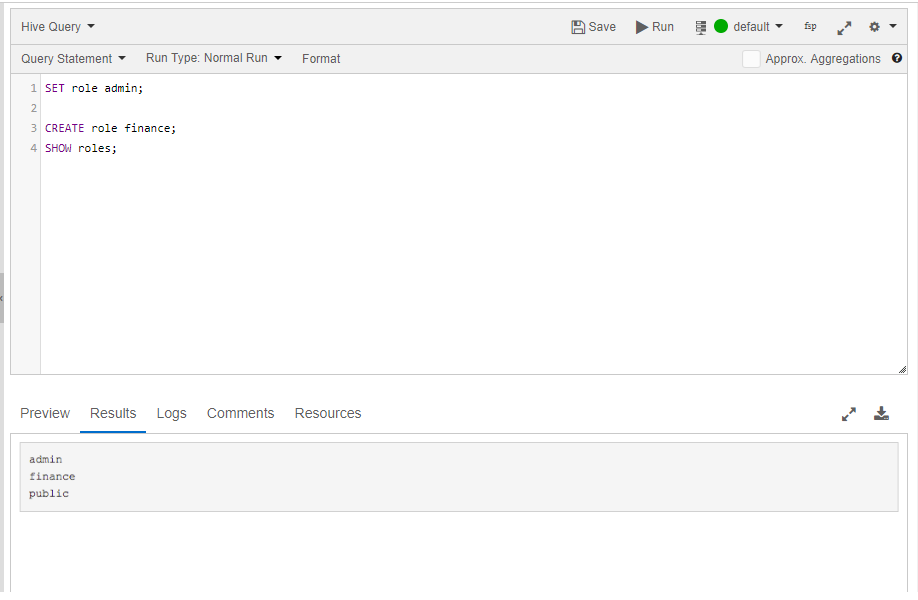
In addition to the default roles, public and admin, the admin can create custom role (for example, a role called finance) as shown in the following figure.
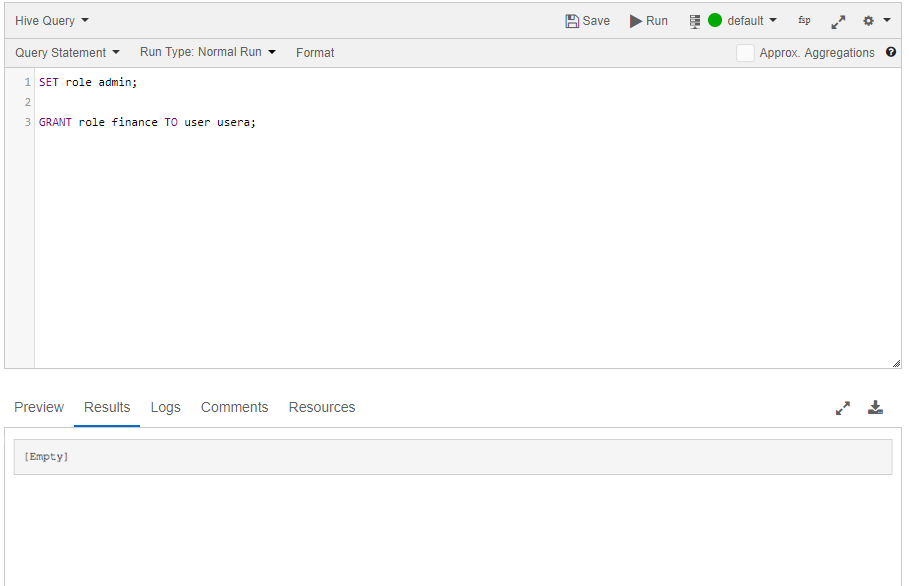
As an admin, you can grant the system and custom roles to a user as shown in the following figure.
Check all users who have been granted with a specific role as illustrated in the following figure.
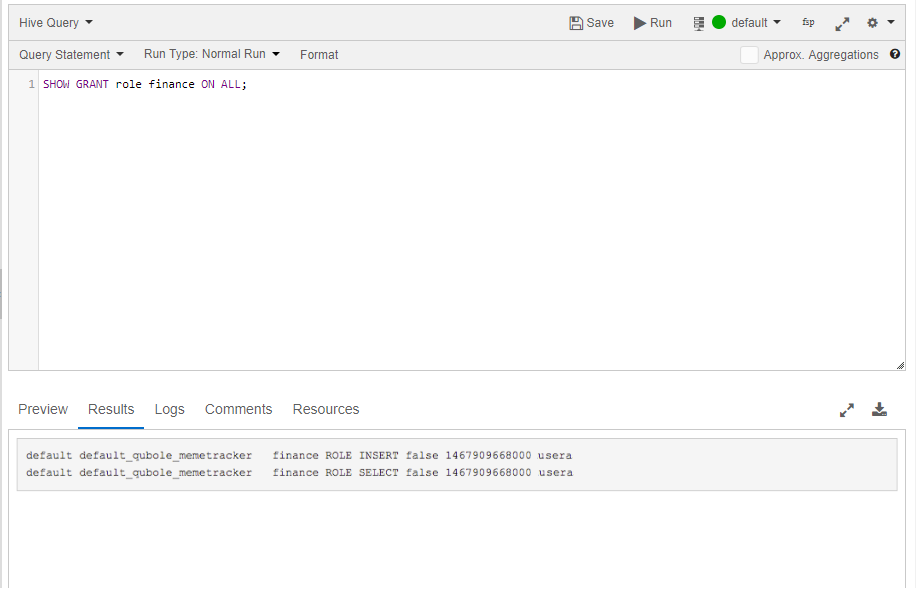
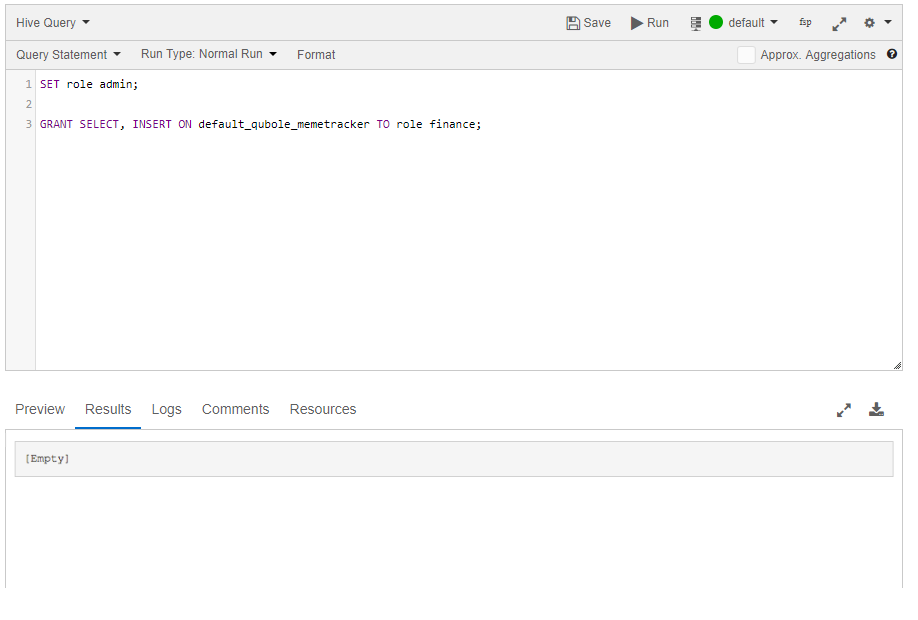
The admin can grant privileges to users as described in Understanding Privileges for Users and Roles. For example, you can grant SELECT and INSERT privilege to the finance role for the default_qubole_memtracker table as illustrated in the following figure.
Note
To access Hive tables, use the <username>@<emaildomain.com> as the login username and default password is empty.
For example, if your username is user1, then you login as user1@xyz.com.
You can set hive.qubole.authz.strict.show.tables=true as an Hadoop override in the Cluster UI > Advanced
configuration to allow users to only see tables that they have SELECT access to in the show tables query result.
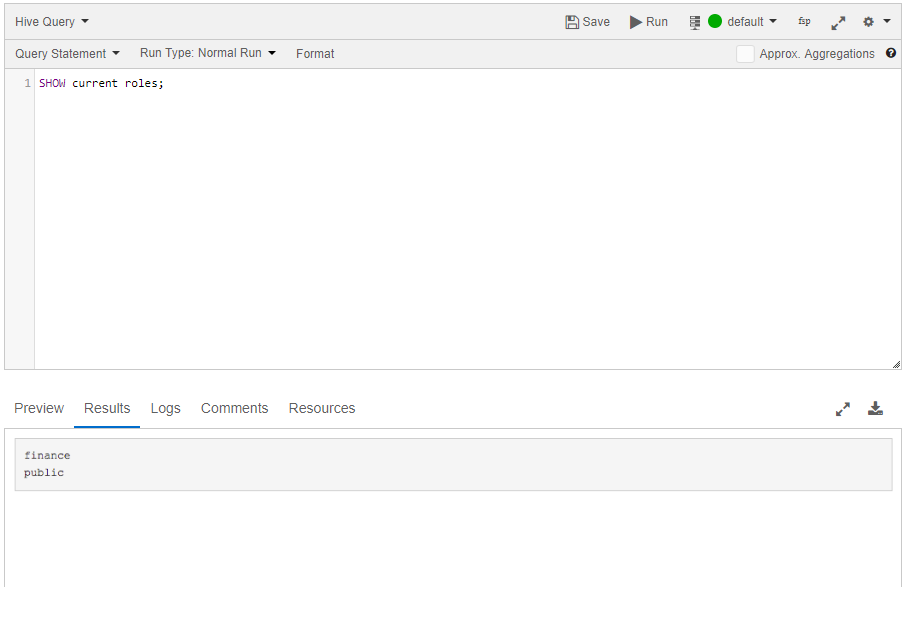
Log in as a user using the email address and check the roles granted to you as illustrated in the following figure.
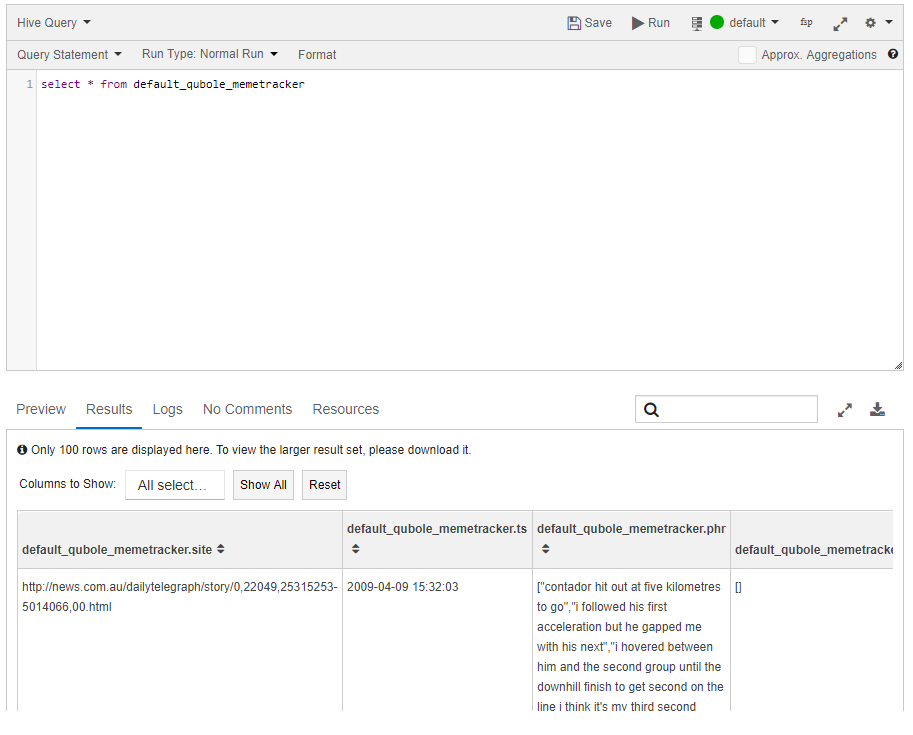
After you (as a user) get SELECT privilege to one or more specific tables, you can run a select query on that privileged table as illustrated in the following figure.
However, you cannot access a table for which you have no SELECT privilege. The following figure shows an example of a restricted SELECT privilege with the error message in the Analyze query composer’s Results tab.
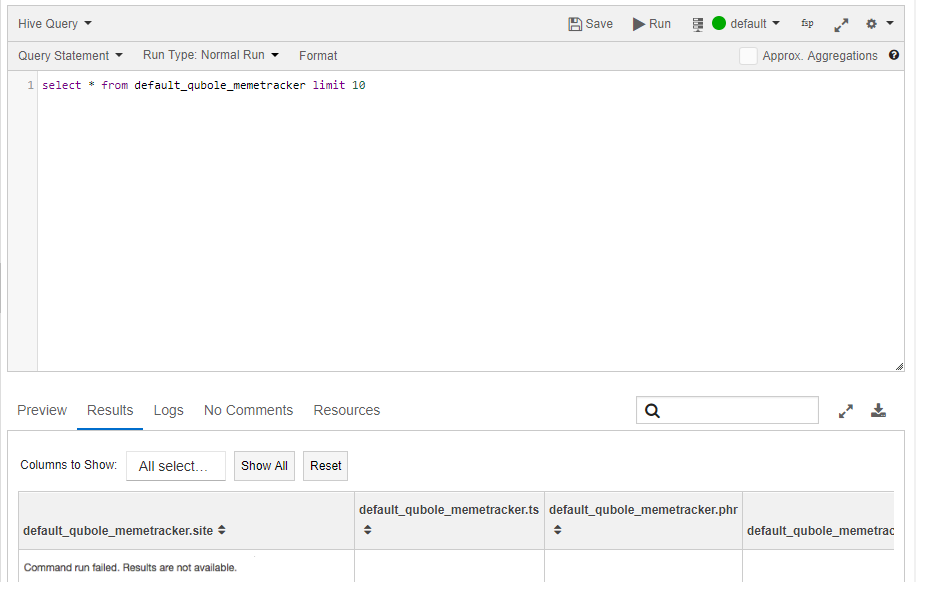
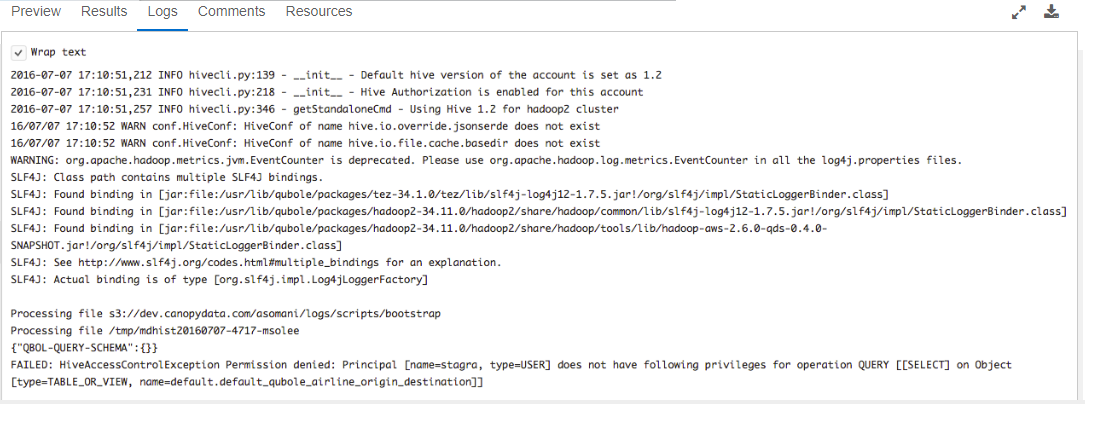
Check the logs for the explicit reason behind the unsuccessful query result. The following figure shows the logs with the exact cause for an unsuccessful query.